This was a fun issue that I just went through hours of troubleshooting to resolve. If you use .local domains for local dev environment or just to setup local name resolution in your Windows hosts file, there could be a delay in DNS resolution due to Apple’s Bonjour service, win loss analysis. You can either remove the Bonjour service completely or refrain from using .local in your hosts file. I replaced all my .local entries with .loc and now my resolution is instant instead of taking 2 seconds. Use a sub-domain instead of a special TLD.
Category: Networking
Slow internet in LinuxMint
I installed LinuxMint earlier today because I found that I really liked the Cinnamon desktop environment on my laptop. I promised that I would post how well it works on my desktop.
Well it mostly works fine. There’s still a slight hiccup that I’m trying to work through, where the desktop environment just seems to die. I have this same problem on Gnome 3 and Unity though, so I think it has something to do with the ATI drivers. I wish I had a good nVidia card to go in this thing.
There’s one bug that I had to post about. I was getting terrible internet speeds from my LinuxMint install. My top speed was around 190KBytes/sec. Some people may still regard this as fast, but I’m on a 30Mbit/sec connection. I should be seeing speeds around ten times that.
It was across the board too. I thought it was a bad mirror at first because I first noticed it while trying to update the system and install new software from the repos. I soon found that the problem was also happening from every web site and speedtests showed the same results.
I started out by searching for the issue and was coming up with a lot of duds. It was the standard first level support answers like “unplug your router and modem”. No need, I know that’s not the issue. After some intense searching, I finally found the answer. It was a problem with my network card drivers in the latest versions of Ubuntu and LinuxMint.
My system was showing a RTL8111/RTL8169 network device. The 8169 is the part to look for. This driver is built into the latest kernel and it has problems. I found that the solution was to build the r8168 drivers (note that’s 8168 not 8169) from source.
A full walk-through can be found here: https://unixblogger.wordpress.com/2011/10/18/the-pain-of-an-realtek-rtl8111rtl8168-ethernet-card/
Follow those steps and you’ll not have this issue again. Much thanks to the author!
Mount Samba/Windows/CIFS Share with User Read/Write Permissions
Mounting a Windows/SMB/CIFS share can be accomplished in many different ways. The way that I do it works best for me, and I’m presenting it here for anyone who wants to take advantage of the info.
I have a NAS device with Windows shares on IP 192.168.1.90 on my LAN. One of the shares is called “Docs” which I use for important documents. First I create a directory to mount the share to on my local machine. I put this in my /media directory.
1 | sudo mkdir /media/Docs |
Note that I’m using Debian Wheezy as my distro, but all of this should work in any distro.
Next I add a line to my /etc/fstab file. It can go at the bottom of the file. So, open /etc/fstab in your favorite editor. I’m using vim.
1 | sudo vim /etc/fstab |
The line I add for the share is:
1 | \\192.168.1.90\Docs /media/Docs cifs username=myuser,password=mypassword,uid=myuser,gid=users,auto 0 0 |
I set “myuser” to my actual local username. The reason I’m setting the uid in this line is because I want to specify that my user will be the owner of the mounted share (giving me read and write), and I’m setting the gid to users because I want all other users on the local machine to have read access to the mount.
After saving the file, I can sudo mount /media/Docs and I’ll have my mount available for my user. When the system reboots, the mount will automatically occur. So my user will have access to the mount directly after boot.
An optional, more secure way to do this is to put your username and password in a file somewhere (perhaps your home directory) and replace the “username=myuser,password=mypassword” part of the mount line with “credentials=/path/to/file”. This will help keep your passwords safe. Also note that these credentials aren’t your local user credentials necessarily. They can be the same, if you set your local user up with the same creds as the share, but these credentials should be the user information that gets you access to the share.
Best Godaddy Alternative Registrar
Many of you may be die-hard GoDaddy users. GoDaddy’s support of the SOPA has led many people to start looking for a new registrar, including myself. After a boycott, GoDaddy broke away from its support of SOPA. However, their initial support for the legislation was enough to turn me away, find the right payroll software for your startup. I do not plan to do any further business with them and will be slowly migrating my existing sites over to another registrar as time goes by. If you have a company be sure to be on time payment.
In my search for a GoDaddy alternative, I found that I really like NameCheap.com. They offer good rates on domain transfers and registration. I also like their control panel much better than GoDaddy. They don’t have as much up-selling going on when you register a domain. I always found that annoying about GoDaddy. I also didn’t care for GoDaddy’s domain manager implementing proper payroll processes. Once, I tried out GoDaddy’s Windows hosting as well. It was terrible. So if you are looking for a viable alternative to GoDaddy, you should definitely give NameCheap.com a try.
A Free “Net Nanny” Solution using OpenDNS
Many internet users understand that a large portion of the internet is pornographic in nature. Many parents want to restrict their children from being able to view pornographic sites, and with sites like Youporn and other “porn tubes” which do not require identification or a credit card, this is even harder to restrict. There are programs available to block such sites, but sometimes they aren’t very effective, and there are easy ways around them.
There is a good alternative for parents in their search, however. OpenDNS, which is a free DNS service with many features, has built in site blocking capabilities. You simple sign up for an OpenDNS account at http://opendns.com and configure your router to use the OpenDNS servers. That last part isn’t as hard as it sounds, but it’s different on various routers. Typically the DNS settings are in the main router configuration settings. It will typically be set to automatically use the DNS servers provided by your ISP. You should be able to use manual DNS servers, however, and you can find the IPs for these servers at the bottom of your OpenDNS account page.
Once you have your router using OpenDNS’s servers, you can configure your home network’s settings on the OpenDNS accounts page. There are various levels of blocking, plus you can block individual domains if you want. They also have good stats available, if you enable it. This will track all domain name requests and show you what everyone on your home network has been looking at. I’d say a few wives just raised their eyebrows.
Of course, with enough know how, one can get around these types of blocks, just like any other block. Most children will not know how to do this, however. Tech savvy teenagers may have more ability to get around these blocks, but once they are at the point where they’ll go to such great lengths to look at porn, just let them do it. They aren’t going to listen to you anyway 😛
My Search for the Best Deal on a Dedicated Server
Searching for a dedicated server can be stressful, especially when you have a lot of sites that are running slow as a result of their current host. Recently, I switched about 600 sites over to a dedicated server I borrowed from my friend Lynn. It is a pretty decent server, with two dual core Xeons running at 3 GHz. It also has 8 GB of RAM. However, it’s just not enough. After switching DNS over to this new server, its load went to 20 very quickly. For those who don’t know, a load of 20 means that there are 20 processes waiting in line to be processed. I don’t like my loads to go above 2 or 3. I can deal with them spiking to as high as 4, but with a multicore/multiprocessor I don’t want it to get above the number of cores/processors you have available.
Suffice to say that the web sites were loading very slowly. So, I switched the NS back to the VPS server I’ve been running them on. I’ve seen its load spike to 10 quite often but it normally stays well below 4. So the VPS is holding up pretty well considering. This VPS has 4 cores assigned to it, each at 1.6 GHz. It also only has 3GB of RAM. So, my question is, “Is a dedicated server really the best option?”.
There’s more factors in this as well. For instance, my sites are all on a WHM/cPanel install, which means I have to pay a monthly license fee for that as well. On a VPS this license is about half the cost as it is on a dedicated server. I like saving money.
I currently have my hosting through a small hosting provided in Knoxville, TN called Knoxcolo/Smith & Hammaker. I have a colo server (not the one I used for my 600 sites, it’s a single site), and I have the VPS. For the colo they charge $35 for the 1U of rack space, and it’s an unmetered drop. The VPS is $40 per 1GB of RAM. That’s their rate, they don’t charge for extra HDD space or even CPU cores. They are also a good bunch of people to work with. I have full access to the colo facility through a high security system. I rarely use it since my colo has an iLo connection for remote console even when the servers main drop is offline. The security for operational technologies is really necessary to protect the data.
I thought that a dedicated server would be a better choice for my 600 sites, but I’ve found that the VPS is really the better choice in the long run. The only thing I don’t like about the VPS is that I don’t have the ability to remotely reboot the virtual machine. I’d really like this ability.
So I’ve found that perhaps a dedicated server isn’t what I really want. Some VPS providers give you a lot more bang for your buck. You can spend hundreds of dollars per month on a very powerful dedicated server, but you have two problems. You don’t want to spend a lot of money for hardware that you may not use fully. Of course, secondly, you don’t want to spend a lot of money on a server that can’t fully handle the load if you have a lot of sites. With a VPS, you have more power to change the hardware specs to meet the demand of your site load. You pay for whatever you need. This is really the best option for anyone who wants to host any number of sites. If you don’t need much power, because you only have a few sites, you can save money.
However, you should look for the best deal on a VPS. Smaller companies actually have the better deal when it comes to a VPS, because they typically don’t have as much total load on their rack of CPUs. If you get a VPS from a larger provider, they may be pushing their rack to its limits already, and you’ll get terrible physical processor speeds, even if you are paying for four cores.
Shop around and look into VPS servers. They are great alternatives to dedicated or colo servers if you look in the right place.
Removing Old eth devices from Debian
I have a Virtualbox VM which, over time, has been opened on 9 different host operating systems. I reinstall my main OS move than the average person without a doubt. Every time the guest VM is opened from a new host, it adds a new device. So I ended up with 9 ethernet devices. Every time I opened the VM on a new machine I’d also have to reconfigure my static IP. Removing these devices isn’t as difficult as you may think. It’s simply a matter of editing the /etc/udev/rules.d/??-persistent-net.rules file and committing out all the lines that begin with SUBSYSTEM. Then reboot and you should have a fresh eth0.
Adding shares to your Serviio library
Let’s say you are running Serviio as a media server on your Windows machine and you want add share folders to the library. You may find that the share locations show up on your media device but your actual files do not. This is because Serviio is running as a service on your computer and it’s probably being started by the default “System” user. That user may not have access to your shares, especially if you have the shares mounted using specific user credentials. There’s two things I can show you to fix this issue.
First, when you add the folders to Serviio make sure to add them via the “network”. In other words, if you have the shares mounted as mapped drives, don’t use the mapped drive letters. I experienced some issues when doing it that way. Secondly, you’ll want to configure the service to run under your user account. Here’s the step-by-step:
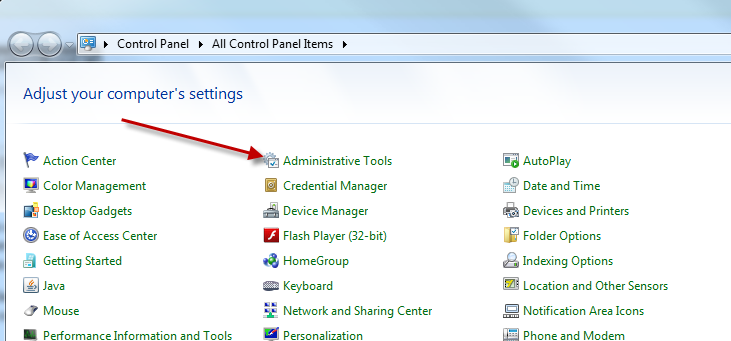
First open control panel and open Administrative Tools:
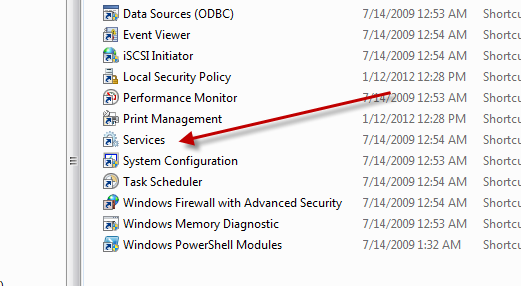
Next double-click “Services”:
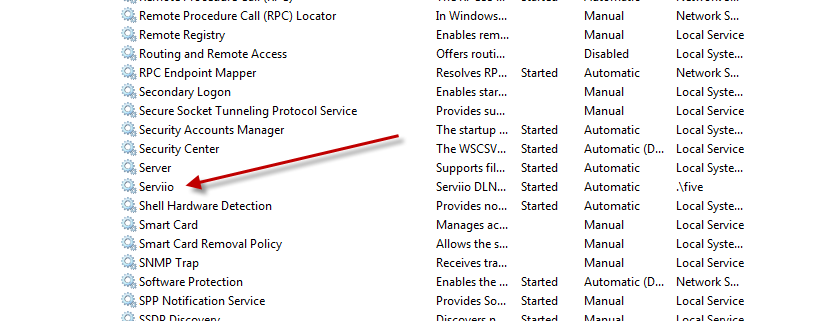
Find the Serviio Service:
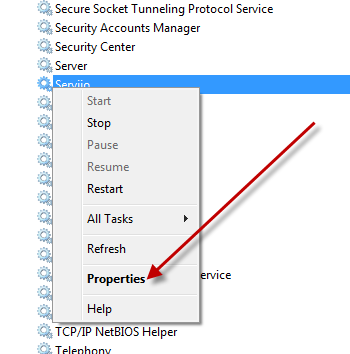
Right click on it and choose “Properties”:
Click on the “Log On” tab and set the credentials for the user which has access to the Windows Share:
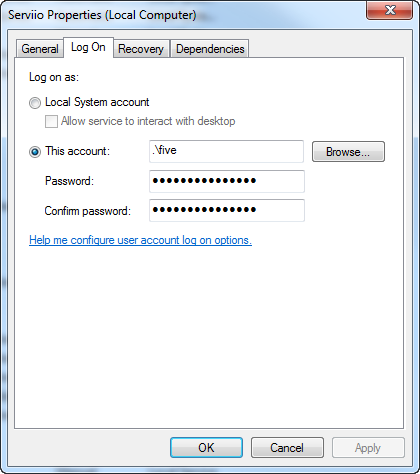
Hit OK and stop/start the service by right clicking on it and choosing “Stop”. After it stops, right click again and choose “Start”.
You should now be able to access the files from your media device (PS3, Xbox360, and other).
GoDaddy Alternatives | Boycott GoDaddy
Due to its support of SOPA, many people are calling for a boycott on GoDaddy. At first GoDaddy was laughing because of the planned boycott. After about 24 hours, their tone changed and they proclaimed that they were no longer supporting the legislation. Many people are looking for alternatives to Godaddy.
I searched for a bit and found that about the best deal in town is namecheap.com. There is a transfer fee for moving domains over to them, but you get a free year of registration with the transfer. So for around $7 bucks you can transfer and renew a .com. If you have a few months left before it’s time to renew your .com, you can still transfer the domain and get a free year along with the remaining time of your current registration.
Check out their deals. Let’s show GoDaddy that we do not like their support of this unconstitutional legislation.
How do I Block and Unblock Internet Sites?
Apparently this is a question many people want asked so I’ll touch on what I use to block/unblock internet sites from my home network. This method will not require one to purchase any additional software or anything. It is designed specifically to be the low cost effective solution.
First of all, your home router controls all of the traffic going to an from your home computers. Some people don’t have routers. The modem, whether it be a DSL, Cable, or dialup modem, handles their routing. These instructions will work for those people as well, but anytime I mention the router, please understand that if there is no router, the modem will be doing all the work.
The router software for various models of routers are different, so it is nearly impossible to have a step-by-step howto for each of them here. Instead, it’s suffice to say that most routers have a block/unblock function. Most even let you time these blocks/unblocks. So one can set up rules as to when certain sites can be viewed.
Refer to your router’s manual for these instructions. It is usually rather easy.
There is a further step that can either be used in conjunction with the router blocks or by itself entirely. This method involves signing up for a free service call OpenDNS.
OpenDNS is a free service that I’ve used for a little over a year. It gives you a great DNS service, plus allows you to do various other interesting things like protect your home network. Basically, all one has to do is sign up for the account and change their DNS settings in the router to the IPs provided by OpenDNS. All future DNS request will go to OpenDNS.
I should probably first explain what DNS is to begin with. DNS stands for Domain Name Server/Service. When you type google.com into your web browser, your computer has no idea what google.com is. It’s oblivious. First it has to query the DNS server. Usually the IP of the DNS server is provided by your ISP. In many cases, the ISP provided DNS server lags behind a bit. You computer asks the DNS server where it can find google.com. The DNS server then responds with the IP address for google.com. Your browser then knows where to fetch the information.
The DNS server configuration can be changed in your router. You will override the ISP defaults and put in the OpenDNS server IPs instead.
OpenDNS updates much faster than typical ISP DNS servers. When you buy a domain name and direct it to your hosting provider, it can take up to 72 hours for the DNS information to propagate across the internet. OpenDNS usually propagates within minutes.
Some of the protection OpenDNS offers is right up there or better than many parental block software. There are automatic settings to make it easy to block pornography or harmful sites. One can also specify sites to block. Anytime a local user tries to access a blocked website, they are told that it is restricted. This is great free service, and I hope this will help you block those unwanted websites, and if you have any questions drop a comment.